Who Should Be a Global Admin in Your Microsoft 365?
How many Global Administrators a small business needs, which roles to use instead, and how to set up emergency access accounts
Last updated: November 2026
Reviewed by the Technety Microsoft 365 team
An Ottawa office manager opens the Microsoft 365 admin center for the first time in months and finds six Global Administrators. The owner. Herself. The bookkeeper, who needed to buy a licence once. The previous IT contractor. A shared “admin@” account nobody remembers the password for. And a former employee who left last spring. Any one of those accounts, if stolen, could take over the entire company.
This guide is written by Technety, an Ottawa-based managed service provider focused on Microsoft 365 administration and security.
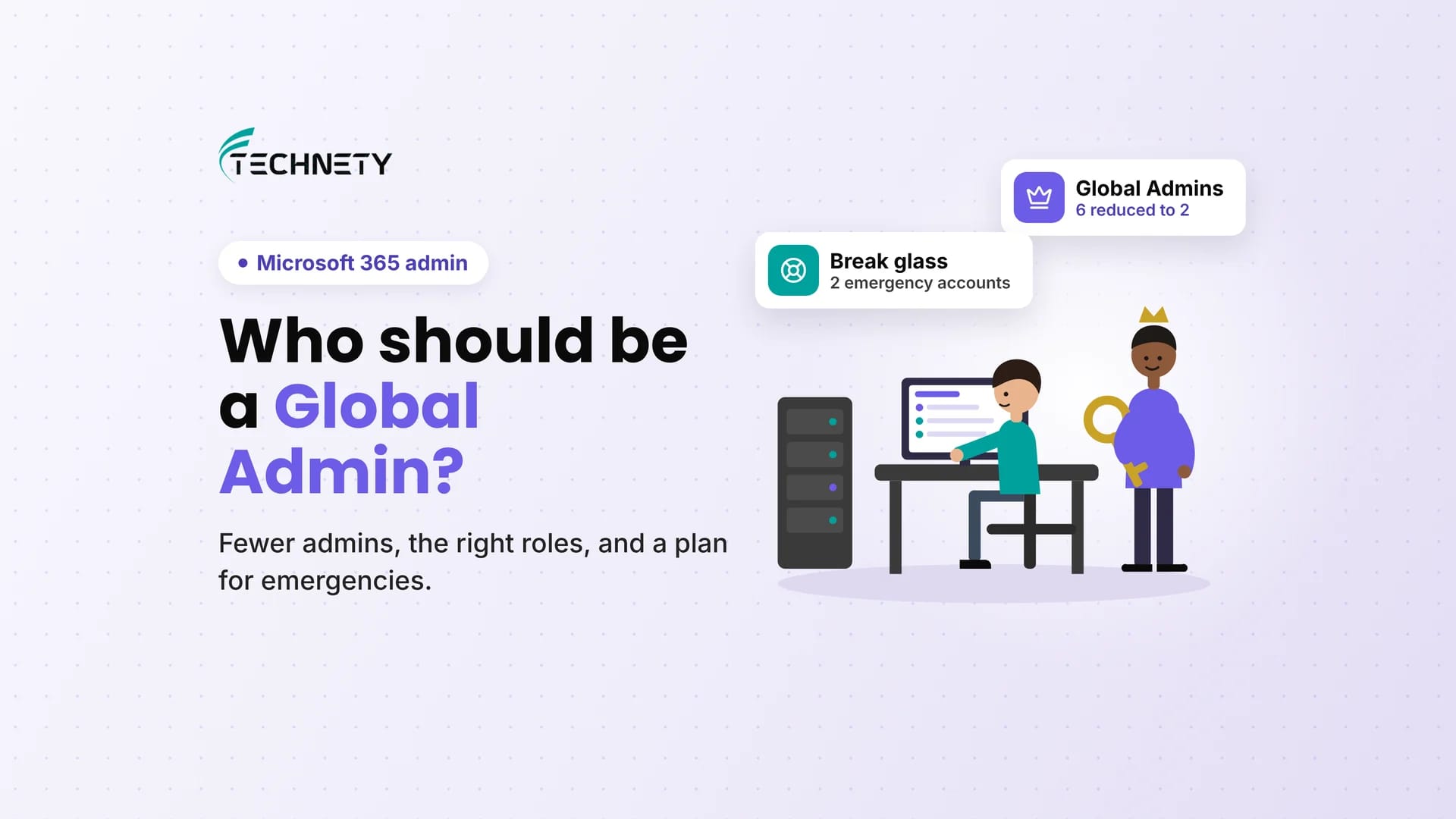
Short answer: in a small business, only two to four trusted people should hold the Global Administrator role, plus two emergency access (“break glass”) accounts. Everyone else who needs admin access should get a narrower role, such as User Administrator or Billing Administrator. Admins should use a separate admin account for admin work, protected by strong, phishing-resistant MFA. Microsoft recommends fewer than five Global Administrators.
Global Administrator best practices at a glance
| What Global Admin can do | Everything in your Microsoft 365 tenant: every user, every mailbox, every file, every setting |
|---|---|
| Microsoft’s recommended limit | Fewer than five Global Administrators, and fewer than ten privileged role assignments overall |
| Minimum for safety | At least two, so one lost phone or one departure does not lock you out |
| Emergency access accounts | Two cloud-only accounts on your .onmicrosoft.com domain, used only when normal admin access fails |
| Daily work | Done from a normal user account, never from a Global Admin account |
| Instead of Global Admin | Use the least privileged role for the task, such as User, Helpdesk, Exchange or Billing Administrator |
Five things every small business should know
- The person who first set up Microsoft 365 automatically became a Global Administrator. Many tenants never changed that.
- A stolen Global Admin account is the worst case: an attacker can read every mailbox, create new accounts and lock you out.
- Most admin tasks do not need Global Admin. Microsoft has more specific roles for passwords, users, mailboxes and billing.
- Admin rights should live on a separate account from the one you use for email and browsing.
- Former staff and old IT contractors with admin rights are one of the most common gaps we find.
What is a Global Administrator in Microsoft 365?
A Global Administrator is the most powerful role in Microsoft 365 and Microsoft Entra ID. Global Admins can manage every setting, every user and every service in the tenant, assign admin roles to others, and access data across the organization. Because there is nothing a Global Admin cannot change, the role should be held by as few people as possible and protected more strongly than any other account.
How many Global Admins should a small business have?
Microsoft recommends assigning the Global Administrator role to fewer than five people. For a small business, a practical setup is:
- Two to four named admins: for example, the owner and your IT provider’s named technicians, or the owner and one trusted manager.
- Two emergency access accounts: not tied to any person and used only if normal admin access fails.
Having at least two matters as much as having fewer than five. If your only Global Admin loses their phone, leaves the company or is locked out by a Conditional Access policy, nobody can fix it.
Which admin role should people get instead?
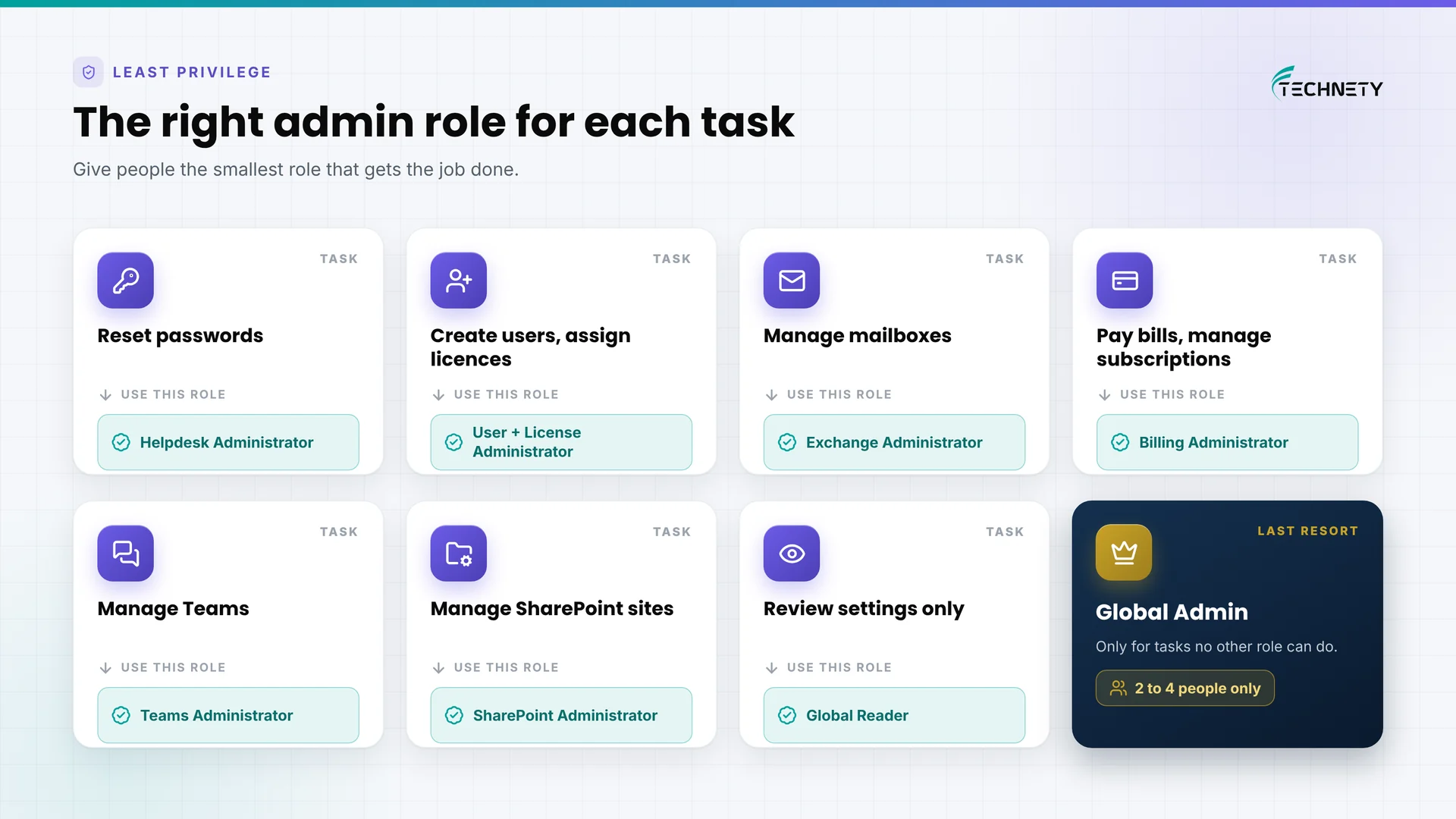
Microsoft’s guidance is to use the least privileged role that can do the job. For common small business tasks:
| Task | Role to use |
|---|---|
| Reset passwords for staff | Helpdesk Administrator |
| Create users and assign licences | User Administrator and License Administrator |
| Manage mailboxes and shared mailboxes | Exchange Administrator |
| Pay invoices and manage subscriptions | Billing Administrator |
| Manage Teams settings | Teams Administrator |
| Manage SharePoint sites | SharePoint Administrator |
| Review settings without changing them | Global Reader |
The bookkeeper who only buys licences needs Billing Administrator, not Global Admin. The office manager who resets passwords needs Helpdesk Administrator.
Daily account or admin account?
| Daily account | Admin account | |
|---|---|---|
| Example | jane@yourcompany.ca | admin-jane@yourcompany.ca |
| Used for | Email, Teams, browsing, documents | Admin center tasks only |
| Has a mailbox and licence | Yes | Usually no |
| Admin roles | None | Only the roles needed |
| MFA | Required | Required, ideally a passkey or security key |
Separating the two means a phishing email that tricks someone into signing in only exposes an account with no admin power.
What are emergency access accounts?
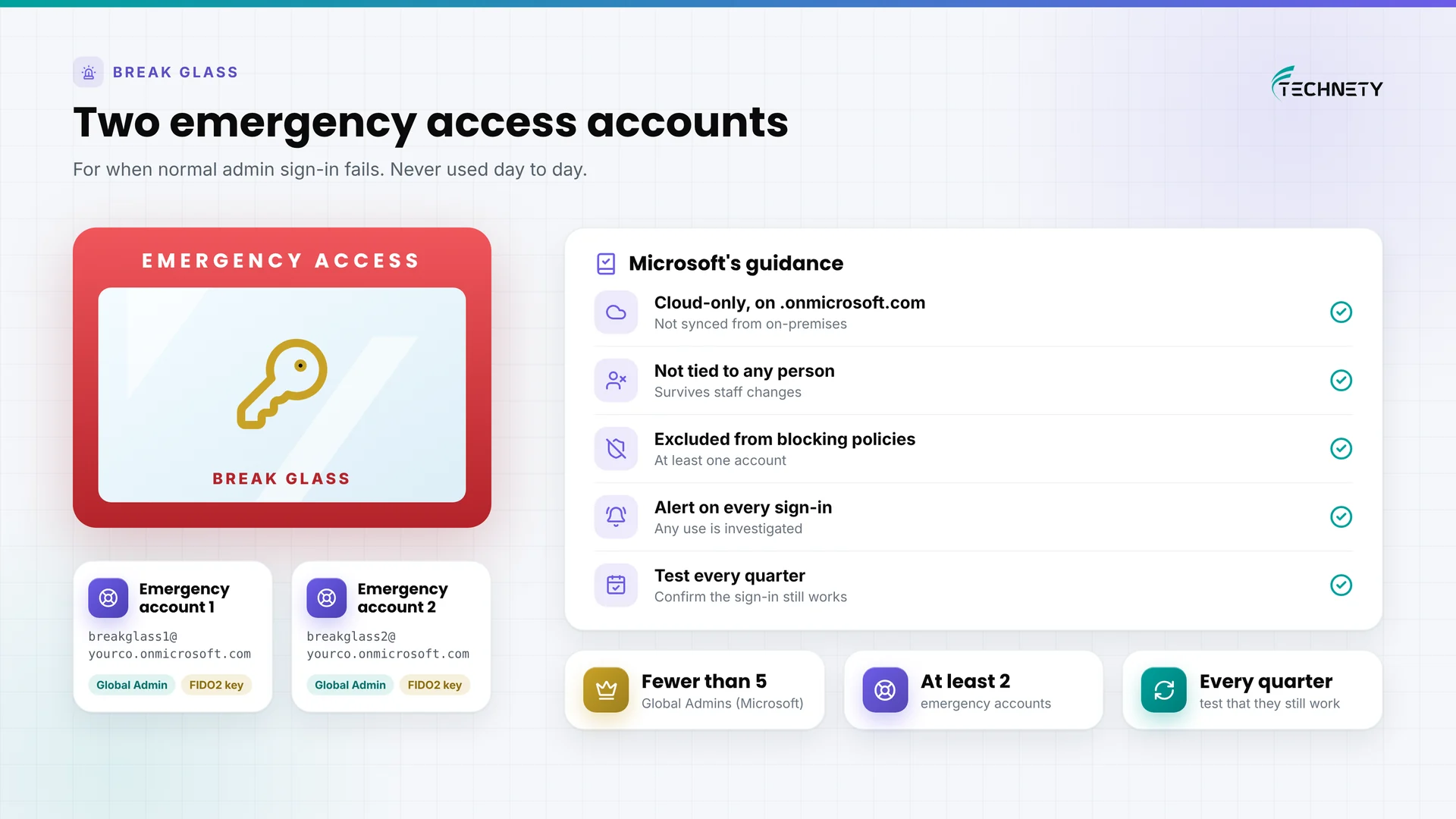
Emergency access accounts, often called “break glass” accounts, are Global Admin accounts kept for when normal admin access fails: an MFA outage, a misconfigured Conditional Access policy, or a departed admin. Microsoft’s guidance includes:
- Create two or more so one failure is not fatal.
- Make them cloud-only, on your .onmicrosoft.com domain, not synced from an on-premises server.
- Do not tie them to a person. They belong to the business, not an employee.
- Exclude at least one from Conditional Access policies that could block sign-in, and protect them with strong authentication such as a FIDO2 security key.
- Store credentials securely and alert on any sign-in, since these accounts should almost never be used.
- Test them regularly, for example every quarter.
How do you check who is a Global Admin?
- Go to admin.microsoft.com and sign in as an admin.
- In the left menu, select Roles, then Role assignments.
- Select Global Administrator, then the Assigned tab.
- Review every name. For anyone who does not need full control, select their name and remove the role, then give them a narrower one.
How do you clean up Global Admin access?
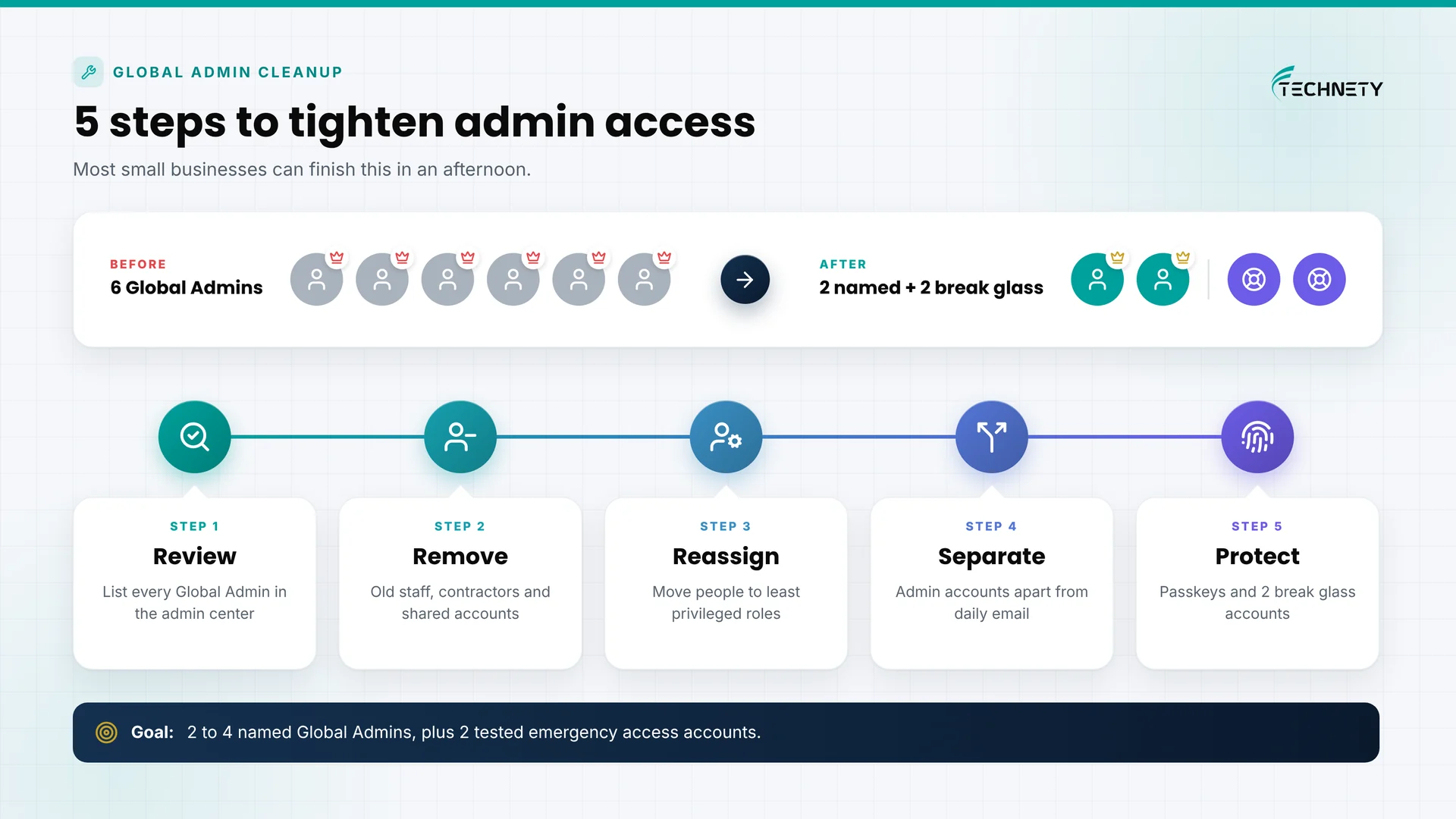
| Area | What good looks like |
|---|---|
| Review | You know every account with Global Admin and why it has it. |
| Remove | Former staff, old contractors and shared admin accounts no longer have admin rights. |
| Reassign | People who need some admin access have the least privileged role for their task. |
| Separate | Named admins use a separate admin account, not their daily mailbox. |
| Protect | Admin accounts use phishing-resistant MFA, and two emergency access accounts are in place and tested. |
| IT provider access | Your IT provider uses granular delegated admin access (GDAP) with limited roles and time limits, not a shared Global Admin password. |
For more on removing old access, see who still has access to your Microsoft 365.
What about Privileged Identity Management?
Microsoft Entra Privileged Identity Management (PIM) lets admins activate a role only when needed, for a limited time. Microsoft recommends it, but PIM requires Microsoft Entra ID P2, which is not included in Microsoft 365 Business Premium. For most small businesses, a short list of admins, separate admin accounts and strong MFA deliver most of the benefit without the extra licence.
What does this look like in practice?
This is an illustrative example based on a typical setup, not a specific client.
Where they started: A 20-person Ottawa engineering firm had six Global Administrators, including a shared “admin@” account, a former contractor and the bookkeeper. Admins used their everyday mailboxes for admin work, and there were no emergency access accounts.
What changed: The firm kept two named Global Admins on separate admin accounts with passkeys, created two emergency access accounts with security keys, gave the bookkeeper Billing Administrator and the office manager Helpdesk Administrator, removed the shared and former accounts, and moved its IT provider to GDAP.
The result: The firm went from six Global Admins to two, plus two emergency accounts that are tested every quarter. When the office manager later clicked a convincing phishing link, the attacker reached an account with no admin rights, and the damage was contained to one mailbox.
For small businesses across Ottawa, from Kanata and Barrhaven to Orléans, an admin role review is usually the first step in Microsoft 365 administration, because every other security setting depends on who holds the keys.
How Technety helps
Technety manages and secures Microsoft 365 for small businesses in Ottawa. As part of our Microsoft 365 administration and security service, we can help you:
- Review every admin role in your tenant
- Remove unneeded Global Admins and assign least privileged roles
- Set up separate admin accounts with phishing-resistant MFA
- Create and test two emergency access accounts
- Manage your tenant through GDAP with limited, time-bound roles
Frequently asked questions
How many Global Admins should a small business have?
At least two and fewer than five, plus two emergency access accounts. Microsoft recommends fewer than five Global Administrators.
Should the business owner be a Global Admin?
Often yes, as one of the two to four named admins, but on a separate admin account with strong MFA, not their everyday email account.
What role should someone who only resets passwords have?
Helpdesk Administrator. It can reset passwords for non-admin users without full control of the tenant.
What is a break glass account in Microsoft 365?
A break glass, or emergency access, account is a cloud-only Global Admin account not tied to any person, kept for emergencies when normal admin accounts cannot sign in.
Should our IT provider have Global Admin?
Your IT provider should use granular delegated admin privileges (GDAP), with only the roles they need and time limits, rather than a shared Global Admin password.
Do we need Privileged Identity Management?
PIM is helpful but requires Microsoft Entra ID P2, which is not in Business Premium. Most small businesses get most of the benefit from fewer admins, separate admin accounts and strong MFA.
How do I see who has Global Admin?
In the Microsoft 365 admin center, go to Roles, then Role assignments, select Global Administrator and open the Assigned tab.
Know exactly who controls your Microsoft 365
Technety offers a free 30-minute Microsoft 365 and security review for Ottawa small businesses. We will list every admin in your tenant, flag risky access and show you how to tighten it.
Related reading: who still has access to your Microsoft 365, why MFA isn’t enough anymore, and the 10 Microsoft 365 security settings to turn on.
This article is general information, not legal advice.
Sources
- Microsoft Learn: Best practices for Microsoft Entra roles
- Microsoft Learn: Manage emergency access accounts in Microsoft Entra ID
- Microsoft Learn: Create a resilient access control management strategy
- Microsoft Learn: Best practices when configuring administrative roles
- Microsoft Learn: Securing privileged access in Microsoft Entra ID
Related articles
More practical guides on Microsoft 365, security and IT for Ottawa businesses.