Microsoft 365 Management in Ottawa: What It Includes and How It’s Priced
A plain-language guide for Ottawa small businesses and nonprofits that pay for Microsoft 365 but aren’t sure anyone is looking after it
Most Ottawa small businesses pay for Microsoft 365 every month. Far fewer have someone actually managing it. Often the job falls to whoever set it up years ago, or to an office manager who handles “the computer stuff” on the side. This guide explains what proper Microsoft 365 management covers, how to tell if yours is being neglected, and how pricing works.
What is Microsoft 365 management?
Microsoft 365 management is the ongoing work of setting up, securing and maintaining your organization’s email, files, Teams and user accounts, so they stay safe, organized and cost-effective.
Buying Microsoft 365 gives you the tools. Management makes sure they’re configured properly: the right people have the right access, security features are turned on, old accounts are removed and nobody is paying for licences they don’t use.
The essentials:
- Microsoft 365 is not “set and forget.” Microsoft changes features and security settings regularly, and your team changes too.
- Many of the most important security features are already included in what you pay for. They just need to be turned on and maintained.
- Microsoft recommends fewer than five Global Administrators, yet small businesses often have far more people with full admin access.
- Your total monthly cost has two parts: Microsoft’s licence fees and the management fee. They’re separate, and worth comparing separately.
- If nobody can answer “who manages our Microsoft 365?”, that’s the first problem to solve.
What does Microsoft 365 management include?
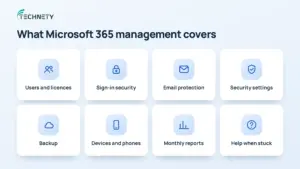
A good management service covers eight areas, some handled daily and others reviewed monthly.
| Area | What it means in practice | How often |
|---|---|---|
| Users and licences | Adding new staff, removing people who leave, assigning the right licence to each person | As needed |
| Sign-in security | Multi-factor authentication (MFA) for every account, blocking risky sign-ins | Set up once, reviewed monthly |
| Email protection | Filtering phishing and spam, protecting your domain from being impersonated | Ongoing |
| Security settings | Reviewing admin access and security defaults, tracking Microsoft Secure Score | Monthly |
| Backup | A separate backup of email, OneDrive and SharePoint that you control | Daily |
| Devices and phones | Keeping company laptops updated and protecting work data on personal phones | Ongoing |
| Monthly reports | A plain-language summary of what changed and what needs attention | Monthly |
| Help when stuck | Someone to call when a user is locked out or something stops working | As needed |
Users and licences is where most small businesses start. When a new employee joins, they need an account, the right licence, access to the right shared files, and MFA from day one. Our Microsoft 365 new employee onboarding checklist walks through what that should look like. The reverse matters just as much: when someone leaves, their access should be removed the same day.
Sign-in security gives the biggest protection for the least effort. Microsoft’s documentation cites research showing MFA can block more than 99.2% of account compromise attacks.
Security settings includes keeping admin access tight. Microsoft recommends assigning the Global Administrator role to fewer than five people, and keeping two emergency access accounts so you’re never locked out.
Monthly reviews often use Microsoft Secure Score, a free, built-in measurement of how well your Microsoft 365 is configured. It’s a useful way to track progress, though a high score doesn’t guarantee you can’t be breached.
Devices and phones matter because work email often lives on personal phones. Our guide on how to secure work email on personal phones explains how to protect company data without taking over employees’ devices.
How do you know if nobody is managing your Microsoft 365?
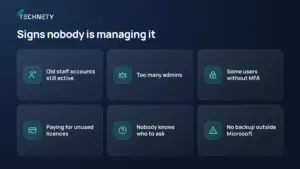
If any of these sound familiar, your Microsoft 365 probably isn’t being actively managed:
- Former employees still have active accounts, or you’re not sure
- Several people have full admin access “just in case”
- Some staff sign in with only a password, without MFA
- You’re paying for licences nobody uses
- Nobody knows who to call when something breaks
- Your only backup is Microsoft’s built-in retention
Each one is common, and each one is fixable. The most urgent are old accounts and missing MFA. Attackers often get in through forgotten accounts or a single stolen password. Our article on Microsoft 365 security myths explains why Microsoft’s built-in retention isn’t a true backup.
How is Microsoft 365 management priced?
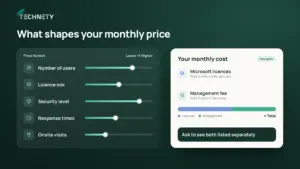
Most providers charge a monthly fee per user, per device or as a flat rate, and it’s separate from what you pay Microsoft for licences.
This catches many business owners off guard. Your total monthly cost has two parts:
- Microsoft licences: what you pay Microsoft for each user’s plan, such as Business Basic, Business Standard or Business Premium.
- Management fee: what you pay a provider to set up, secure and maintain everything.
Some providers bundle both into one invoice, which is convenient. Ask to see the two parts listed separately so you can compare quotes fairly.
What affects the management fee:
- Number of users: more people means more accounts, licences and support requests.
- Licence mix: Business Premium unlocks extra security features, like device management and Conditional Access, which take more work to configure and maintain.
- Security level: basic administration costs less than active monitoring and monthly security reviews.
- Response times: faster guaranteed response usually costs more.
- Onsite visits: fully remote support is typically cheaper than plans that include visits to your office.
Questions to ask before you sign:
- Is the price per user, per device or a flat fee?
- What’s included, and what costs extra?
- How quickly will you respond, and who answers?
- Do you include a separate backup, or is that an add-on?
- If we leave, will you hand over all admin access and documentation?
For a broader look at comparing providers, see our guide on how to choose a managed IT and Microsoft 365 provider in Ottawa.
Can you manage Microsoft 365 yourself?
Yes, if your team is very small and someone has the time and interest to learn it properly. Microsoft’s admin center is designed to be usable by non-specialists, and the basics like adding users and resetting passwords are straightforward.
It gets harder as you grow. Security settings, admin roles, sharing controls and device management all take real knowledge to configure safely, and mistakes are easy to miss. A common middle ground is to have a provider set everything up properly once, then handle day-to-day tasks yourself, with the provider reviewing security a few times a year.
Where Technety fits
Technety is an Ottawa-based managed service provider focused on Microsoft 365 administration and security for small and midsize businesses and nonprofits. We handle Microsoft 365 and Google Workspace management, proactive IT support and cybersecurity awareness training, with plain-language reporting so you always know where things stand.
We also support nonprofits on tight budgets. Our guide to IT support for Ottawa nonprofits and charities covers their specific licensing and security needs.
What does good management look like in practice?
Imagine a 12-person Ottawa insurance brokerage where the office manager handles Microsoft 365 on the side.
| Before a management review | After |
|---|---|
| Four people with full Global Administrator access | Two named admins plus two emergency accounts, as Microsoft recommends |
| A former employee’s account still active eight months later | Old accounts removed, with a same-day offboarding process |
| Two staff signing in with only a password | MFA on every account |
| Three unused licences billed every month | Licences matched to actual staff, saving money each month |
| No backup beyond Microsoft’s retention | Daily backup of email and files |
None of these fixes required new software. They were all settings and processes inside the Microsoft 365 the brokerage was already paying for.
Frequently asked questions
What does Microsoft 365 management include?
It covers managing users and licences, securing sign-ins with MFA, protecting email, reviewing security settings, backing up data, protecting devices, reporting monthly and providing support when something goes wrong.
Is Microsoft 365 management the same as IT support?
Not exactly. IT support usually means fixing problems as they come up. Microsoft 365 management is ongoing work to keep your setup secure and organized, so fewer problems happen in the first place. Many providers offer both together.
Does Microsoft manage my Microsoft 365 for me?
No. Microsoft keeps the service running, but your settings, users, security configuration and data are your responsibility. This is often called the shared responsibility model.
How many admins should a small business have?
Microsoft recommends fewer than five Global Administrators, and two emergency access accounts so you can never be locked out. Everyone else should have only the access their job needs.
Are Microsoft licences included in the management fee?
Usually not. Licences are paid to Microsoft, while the management fee is paid to your provider. Some providers bundle them on one invoice, so ask to see both listed separately.
What is Microsoft Secure Score?
It’s a free, built-in measurement of how well your Microsoft 365 is configured, based on Microsoft’s recommended security settings. It’s a useful progress tracker, but not a guarantee against breaches.
Can a nonprofit get Microsoft 365 management at a lower cost?
Many providers, including Technety, offer nonprofit pricing. Nonprofits may also qualify for free or discounted Microsoft licences through Microsoft’s nonprofit program.
Not sure who’s managing your Microsoft 365?
Technety offers a free 30-minute Microsoft 365 review for Ottawa businesses and nonprofits. We’ll check your users, admin access and security settings, and tell you plainly what needs attention. Book your free review.
This article is general information, not legal advice.
Sources
Similar
Our newsroom highlights the milestones shaping Shipora and the markets we serve.